Convert ANZ Statement PDF to Excel or CSV
Convert your ANZ PDF bank statement to Excel or CSV in seconds — free for up to 50 pages/month. No template setup, OCR support for scanned statements.
How do I convert a ANZ statement to Excel?
Download the statement PDF from ANZ online banking, upload it to Bank Statement Parser, and download a clean Excel or CSV file. Every transaction is split into date, description, amount, and balance columns — no manual templates, no copy-paste. Both text and scanned PDFs work. The first 50 pages each month are free.
Download your ANZ PDF statement (from online banking or the mobile app).
Drag and drop it into the upload box on this page, or select the file manually.
Transaction date, description, and amount columns are detected automatically — download the Excel/CSV output in seconds.
What You Get
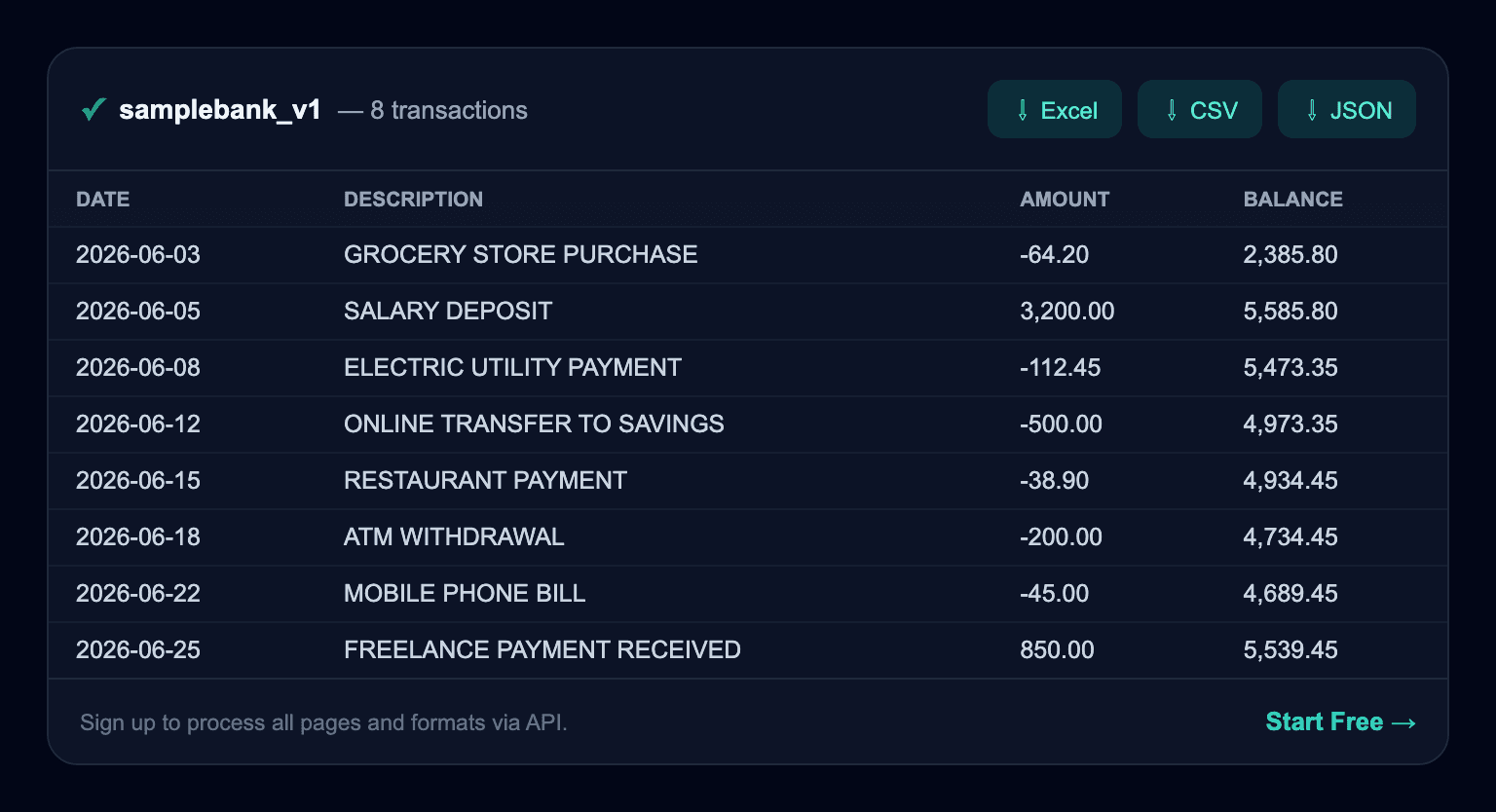
Illustrative example with sample data — your actual result will reflect your own statement.
Try It Now — Upload Your ANZ Statement
Drop PDF here or click to upload
Max 20 MB · Text-based or scanned PDF
Does ANZ offer its own export?
With multinational banks like ANZ, export options vary by country — in many markets the statement is only offered as a PDF, and where CSV exists it's often limited to a short date range.
Comparison With ANZ's Own Export
| Feature | ANZ | Bank Statement Parser |
|---|---|---|
| Output format | CSV/OFX, limited date range | JSON/CSV/Excel from the full PDF you upload |
| Scanned/image PDF support | Not available | Supported via OCR |
| Other banks | Only works inside ANZ's own portal | Any bank, no fixed list — learns unfamiliar layouts automatically |
| Automation | Manual download only | REST API + webhook |
Things to Watch For With ANZ Statements
- Statement language and date/amount formatting vary by country, so a single fixed template won't work across different countries' statements.
- Statements referencing the Australian tax year (July–June) can label periods differently from the calendar year.
Frequently Asked Questions
How do I convert a ANZ statement to Excel?
Drag and drop your PDF statement into the upload box on this page — the parser automatically detects transaction date, description, and amount columns and outputs Excel/CSV. No template setup required.
Does this work with scanned ANZ statements?
Yes — OCR support handles scanned or photographed older statements too, though accuracy can be slightly lower than with clean digital PDFs.